How to Troubleshoot a Website Not Working
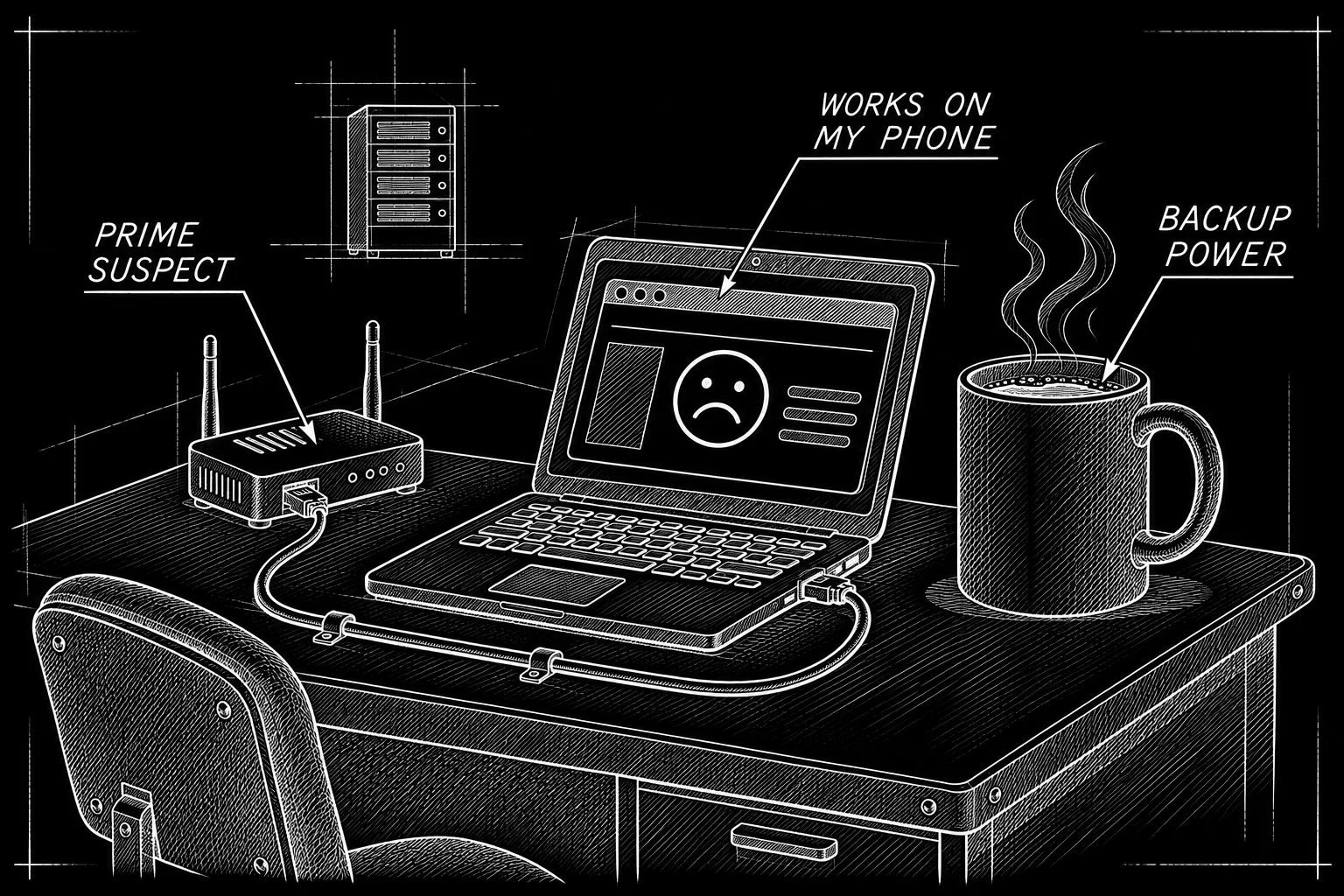
A blank page, a browser warning, or a sudden “This site can’t be reached” message can stop orders, inquiries, and routine work within minutes. The fastest way to troubleshoot a website not working is not to change settings at random. First, identify exactly what failed, who can reproduce it, and what error appears.
That small amount of information separates a local browser or internet issue from a domain, DNS, hosting, certificate, or application outage. It also gives hosting support something useful to act on if you need to escalate.
Start by defining what stopped working
Open the website in a private or incognito browser window and try it from a second device. If possible, test from a different connection, such as a mobile phone using cellular data instead of office Wi-Fi. Write down the full address you tested, including whether it begins with www, and copy the exact browser error.
Then answer three questions: Is one page unavailable or is the whole site down? Can other people see the problem? Are business email accounts also failing?
If the site works on cellular data but not your office network, the hosting account may be healthy. The cause could be a local network filter, a router DNS setting, an IP block, or a cached browser result. If the site fails everywhere and email is also unavailable, a broader hosting account or provider problem becomes much more likely.
Avoid repeatedly restarting plugins, changing nameservers, or restoring backups before you know the scope. Those actions can create a second problem while the original outage is still being investigated.
How to troubleshoot a website not working by symptom
The error on screen is usually the best starting point. Similar-looking failures can have very different causes, so follow the symptom rather than guessing where the site is hosted.
The site says it cannot be reached
Messages such as “This site can’t be reached,” “server not found,” or “DNS_PROBE_FINISHED_NXDOMAIN” often point to DNS. DNS is the system that directs your domain name to the correct website server.
Check whether the domain recently expired, was transferred, or had its nameservers changed. A recent DNS change can take time to appear across networks, but a site that was working normally and suddenly returns a DNS error may also have missing or incorrect DNS records.
If you manage the domain separately from the hosting account, remember that the fix may be at the domain registrar or DNS provider, not the web host. Do not change records unless you know the correct values. Ask your provider to confirm the nameservers and the required A, CNAME, and other records for your site.
You see a privacy or certificate warning
A warning such as “Your connection is not private” means the browser cannot validate the site’s HTTPS certificate. It may be expired, assigned to the wrong domain, incomplete, or temporarily unavailable after a server change.
First, confirm the date and time on your device are correct. Then test both the www and non-www versions of the domain. If only one version shows the warning, the certificate or redirect configuration may not cover both addresses.
Certificate warnings should be treated as urgent, especially for stores, login pages, and contact forms. Visitors may leave rather than continue past a security warning. Contact the hosting provider or whoever manages the certificate and provide a screenshot of the warning and the affected domain.
The browser shows a 500, 502, 503, or 504 error
A 5xx error means the request reached a server, but the server could not complete it correctly. The number matters. A 500 error commonly comes from a site application, plugin, theme, permissions issue, or configuration error. A 502, 503, or 504 can indicate an overloaded service, a temporary hosting outage, a failed connection between servers, or maintenance activity.
If you or a developer recently updated a site plugin, theme, PHP version, ecommerce extension, or custom code, record what changed and when. That timing can help narrow the cause quickly. If no changes were made and several sites on the same account show 5xx errors, check for a provider service notice and contact support.
A 503 may be temporary, but do not assume it will resolve on its own if it persists or affects checkout, customer logins, or a key campaign. Ask support whether there is an account-level resource limit, server incident, or maintenance event.
The domain opens, but the site looks wrong
A default hosting page, “account suspended” notice, redirect to an unfamiliar location, or a stripped-down version of the site suggests a different path than a total outage. The domain may point to the wrong server, the hosting account may be suspended, the website files may be missing, or a recent deployment may have failed.
For an account suspension message, check billing notices and contact the provider directly. For unexpected redirects or unfamiliar content, treat the issue seriously. Change relevant account passwords, pause recent changes, and ask the host to review account activity. A security issue requires a different response than a routine DNS error.
Check whether this is your connection or a wider outage
One of the most valuable tests is comparing results across networks. Test from your normal connection, mobile data, and a trusted colleague’s connection in another location. Keep the results simple: working or not working, exact error, time tested.
If only your connection fails, restart your router only after testing another network. You can also clear your browser cache or try a different browser. These steps may resolve a local issue, but they will not fix a failed server, expired domain, or broken DNS record.
If the problem affects multiple networks, identify the hosting provider and look for an official service-status notice. Many site owners do not know who hosts their website, particularly when a designer, agency, or former employee set it up. A provider directory such as hosting.fail can help you start from the visible problem, identify the provider, and find the appropriate support route.
Provider status information is useful, but it is not final proof that your account is unaffected. A host can show all systems operational while one server, account, IP address, or service is having trouble. If your tests show a broad failure, open a support case even when no public incident is listed.
Gather the details support needs
Support can move faster when you provide evidence instead of a general report that “the site is down.” Include the domain name, exact error message, time the problem began, and the networks or devices where you tested it. Mention whether email works, whether any other sites on the same hosting account are affected, and whether you made a recent change.
For 5xx errors, include the affected URL and a screenshot. For DNS problems, say whether the domain was renewed, transferred, or edited recently. For certificate warnings, state whether the warning affects both www and non-www versions.
Do not send passwords, payment card details, or full account credentials in a support ticket. If support needs account verification, use the provider’s normal secure process.
Protect your business while the issue is being fixed
The right workaround depends on what the website does. If you run an online store, pause paid ads that point to a broken landing page and monitor open orders. If your contact forms are unavailable, use a verified alternate email address or phone line in your social profiles and customer communications. If business email is affected, tell customers where they can reach you rather than assuming messages will be delivered later.
For a short outage, clear communication is usually better than a rushed technical change. Do not point your domain to a new host, change nameservers, or restore an old backup unless you understand the consequences. Those actions can extend downtime and make the original issue harder to diagnose.
When your site returns, test the homepage, contact form, login area, checkout, and transactional email if applicable. A page loading again does not always mean every business-critical function is restored.
The next useful action is always the one supported by the symptom in front of you. Capture the error, test from another network, check the provider’s status, and escalate with clear details. That approach keeps a stressful outage from turning into a longer one.